
Setting up a Cisco Router or Switch might feel overwhelming, especially when you need to give IP addresses to different spots. But it’s super important for making a network work and making sure devices can talk to each other.
In this guide, we’ll walk you through every step and teach you how to give IP addresses to various parts of a Cisco Router or Switch using GNS3. Whether you’re a network pro, a student, or just curious about Cisco tools, this guide will help you get it and set up your Router’s spots with confidence.
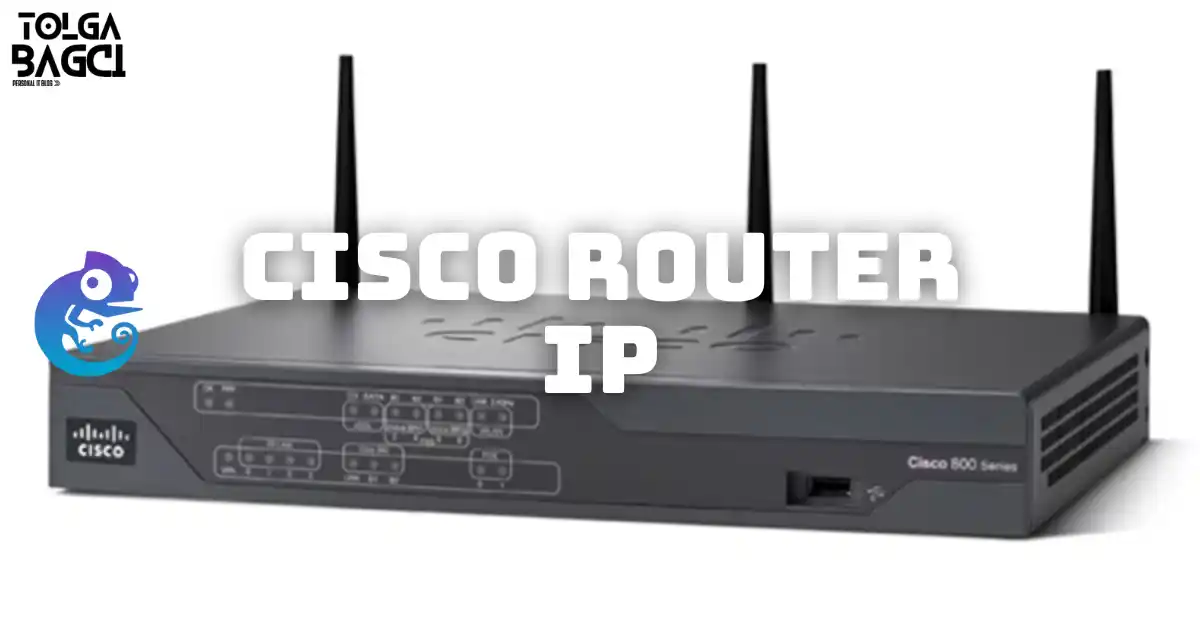
Credit: Cisco
Setting up IP Address and Subnet Mask for Cisco Router
Giving an IP address and Subnet Mask might seem easy, but it can get tricky. It’s crucial to set them up right based on how you plan your network. This makes sure your computers can talk to each other on the LAN.
To understand your network better, you can set up a Router’s spots in GNS3. This lets you see how data moves around your LAN and make it work better by changing things if needed.
Besides setting up a Router’s interfaces, you can also use the loopback adapter in GNS3. This virtual thing acts like a loopback spot on your Router or Switch, which is excellent for testing.
With this card, you can make a virtual port on your device and give it an IP address. This helps you test if things can talk to each other in your network and fix any problems. So, using this interface enables you to see how your LAN works and makes sure everything’s running right.
How to Add an IP Address to a Cisco Router
To set an IP address to the Ethernet interfaces, turn on your device and open the Command Line Interface (CLI). Then, configure the IP address for your Ethernet sockets as needed.
To switch from user mode to the Router’s privileged mode in the Command Line Interface (CLI), type enable and give the correct password. Once you’re in privileged mode, pick the Cisco port where you want to add an address.
You can do this with the interface command followed by the port name (like interface gigabitethernet0/1). After you choose the port, use the ip address command with the IP address and subnet mask you want (like ip address 192.168.1.1 255.255.255.0).
R1(config)# interface fastethernet 0/0
R1(config-if)# ip address 192.168.10.1 255.255.255.0
Once you give a device an IP address, you might need to open a port to let it talk to other devices or services on the network. To do this, you can use a command to open the port and allow them to communicate.
But remember, opening ports can make your network less safe. So, only open the interfaces you really need, and make sure to keep your LAN secure.
R1(config)# interface fastethernet 0/0
R1(config-if)# no shutdown
To see if the sockets on your device are okay, just type show ip interface brief when you’re in the user access mode. This command gives you lots of info about its ports, like their addresses, if they’re working, and if they’re open or closed. It helps you check if the Router’s sockets are working right.
What Are the Risks of Opening Ports on a Router?
Opening ports on a Cisco Router can be risky. It might let hackers into your LAN because it gives them a direct way in. Plus, it could let unauthorized people get into your devices and data. It might slow down your internet or mess up your connection.
So, it’s essential to be careful about opening entry points on your networking device. Only do it if you really need to, and make sure you’ve got suitable security measures in place.
What are the Security Precautions to be Taken When Opening Ports on the Router?
When you’re opening ports on your Cisco Router, you need to take some security steps to keep your network safe from possible dangers. First off, only open the sockets you really need, and keep them closed when you’re not using them.
Also, make sure your Router’s software is updated, and use strong passwords for both your device and any gadgets connected to it. Consider setting up a VPN to scramble your network activity and add another layer of security. Lastly, keep an eye on your LAN to catch any weird stuff or unauthorized access.
Conclusion
To sum up, giving a Cisco Router or Switch an IP address for its Ethernet, FastEthernet, GigabitEthernet, and Serial ports is essential. So it can speak to other devices on the network. Even though it might seem tricky, following the steps in this article can make it easier.
When you set up a router’s interfaces in GNS3, you can look closely at your environment and make sure everything’s connected correctly. Don’t forget to check the ports on your networking device using the show ip interface brief declaration to make sure your LAN is working well.
If you want to know about changing the hostname of your Cisco Router, read our article. We show you the steps to do it, which can be handy if you have lots of devices on your network. With our easy instructions, you’ll be able to give your device a new name quickly.